
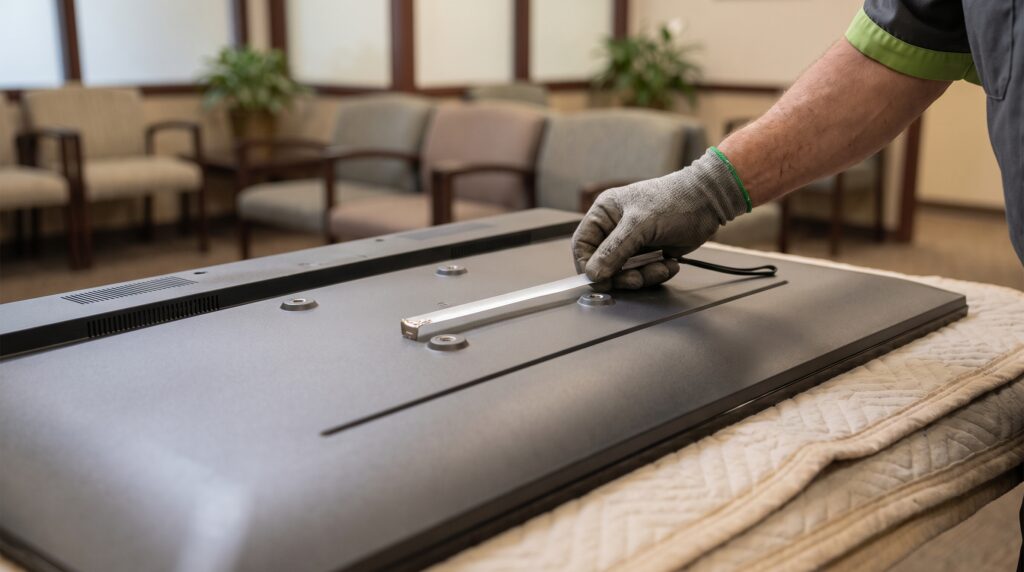
If you’re searching for the best TV for digital signage, the answer is probably the one you already own. The TV matters less than the spot it hangs in, and a decent TV in a good spot usually serves you better than an expensive one in a bad spot.
Maybe the printed hours sign at the front desk is wrong again, and you’d like a waiting room TV to replace it. Work through the checklist below for the TV you have, or the one you’re about to buy, and in an afternoon you’ll know whether it’s ready, what needs moving and what you can leave alone.
No, not if the TV you have has an HDMI port. A signage player plugs into that port and sends the picture to the screen. The TV only has to display what it’s given, and nothing about its age or built-in apps changes that.
What you do need is a TV that fits the spot. Most buyers get stuck here, because the question “is this TV good enough?” has no answer until you know where it will hang, who will be looking at it and how long they’ll stand there.
The standard screen shape helps. IT@Cornell notes that modern televisions use a standard widescreen 16:9 aspect ratio, and that some older screens on its campus use the older 4:3 format. If your TV is a flat panel from the last several years, it’s almost certainly 16:9, and your slides will fill it without stretching.
If you’re comparing players before you pick a TV, our guide to digital signage players for small teams covers what the box itself needs to do. For why a purpose-built player beats a streaming stick, read use hardware meant for digital signage.
A regular TV will work, and a commercial display is built for longer hours. Which one you need depends mostly on how many hours a day the screen will run.
James Madison University’s IT office makes the case for the commercial route. Its guidance says that because signs run continuously for extended durations, they should use a professional display rather than a consumer TV for optimal performance and stability. That’s advice from a campus running many signs around the clock, and it’s worth taking seriously if yours will be on from open to close every day.
A waiting room TV that runs ten hours a day is a different case from a lobby screen that never sleeps. Either way, read the warranty before you buy. Some manufacturers limit coverage on consumer TVs used in a business setting, and the warranty page will tell you.
A TV you already own is a fine place to start. Run it for a month and you’ll learn whether the hours are a problem before you spend anything.
Hang it in the direction your content reads best, and decide before you mount it. Landscape suits most slides, schedules and announcements. Portrait suits a directory, a list of names or anything tall.
Phenix Salon Suites in Orange, California has 51 suites, and its lobby screen lists every stylist and suite number. Marie, managing partner, says on the Phenix story page: “we have the digital signage in our lobby and we use it mostly for our directory.”
List what will run on your TV first. If most of it is tall, mount the TV in portrait. If you’d like to switch later, ask whoever installs the mount whether it can rotate, because some can’t.
Also confirm that the TV itself supports portrait use. Most flat panels do, but check the manual for the one you’re considering.
Bright enough that people can read it from where they stand, in the light that room actually has. The same TV that looks sharp in a dim waiting room can wash out beside a sunny window.
Spec-sheet brightness numbers come from test conditions, so they won’t tell you how a TV reads in your room. Put it where it will hang, at the brightest time of day, and stand where your viewers will stand.
The content matters as much as the panel. IT@Cornell’s guidance says to use text with sufficiently high contrast with the background so it’s legible to people with limited vision, and to keep text large enough to read from a reasonable distance. High-contrast slides survive a mediocre panel. Low-contrast slides fail on a great one.
Size follows the same logic as brightness. How far away your viewers sit decides how large the screen should be, and we cover that in choosing the right size digital signage screen.
The TV needs a wall or stand that holds it securely, a power outlet and a way to get online. The outlet and the network are the two items people forget until the day of installation.
JMU’s hardware requirements list a power outlet and a network port or Wi-Fi accessibility as the baseline, plus a display mount. Its guidance adds that a tilting wall mount is typically enough, though a swivel mount may suit some locations better. A tilt helps when the TV hangs high and people look up at it. A swivel helps when the TV sits in a corner and needs to face the room, which is a common situation in a small waiting area.
If you use Wi-Fi, check the signal at the exact spot. If you use Ethernet, find out where the nearest port is and whether anyone has to run a cable. In a rented space or a building with an IT or facilities team, ask them before you drill anything.
Hide the cables if you can. A power cord hanging down a wall tells every visitor the screen was an afterthought.
The player needs an HDMI port that’s free and reachable. That’s the whole requirement on the TV side. Before you mount, plug in the player, switch the TV to that input and confirm the picture appears.
Two details are worth a look. First, check where the HDMI port sits on the back. Ports that face straight out can leave a mounted TV sitting too far from the wall once the player and its cable are attached. Second, check whether the TV can start on the right input by itself after a power cut. Otherwise someone has to press a remote button every time the power blinks.
A player that ships already set up takes the software work off your list. What’s left is the room: the port, the mount, the power and the network. If the TV is going in a clinic, our piece on waiting room signage without the privacy risk covers what belongs on it.
Use this table as you stand in front of the TV. The right-hand column is what to do if a check fails.
| Check | What to look for | If it fails |
|---|---|---|
| HDMI port | A free port you can reach after mounting | Use an HDMI extender cable, or pick a TV with a better port position |
| Aspect ratio | Widescreen 16:9 or Portriat 9:16 | Redesign content in correct format |
| Orientation | Matches the content you plan to show | Test the mount before you commit to it |
| Brightness | Readable at the brightest hour, from where viewers stand | Move the TV, or use high-contrast slides |
| Hours of use | Fits the hours it will run each day | Read the warranty, or consider a commercial display |
| Mounting | A secure mount, and a tilt or swivel where needed | Ask facilities or the installer before drilling |
| Power and network | An outlet and a Wi-Fi signal or Ethernet port nearby | Plan the cable run or add an outlet first |
Few of these checks involve the TV’s brand. Almost every failed check is about the room.
Buying a bigger TV to fix a crowded slide only gives you a larger crowded slide. Cut the words first.
Glare causes reflections. Windows, overhead lights and glass picture frames all bounce light onto the panel, so stand where viewers will stand and look for reflections before you choose the wall.
Then there’s the question of who fixes it when something goes wrong. Give one person responsibility for the TV once it’s running, and make sure they know where the remote is and which input the player lives on.
Before buying, test the TV’s dimensions by holding a piece of cardboard cut to the screen size against the wall. This lets you confirm whether the screen fits the room visually and remains easily visible from all seating areas.
Yes, if the TV has a tuner a connected cable box or Apps, you can switch inputs and watch it. But a TV running signage is usually set to the player’s HDMI input all day. Most signs show your own slides and announcements, and channel-surfing would pull attention away from your message.
No single brand is best for every room. A better question is which TV suits your hours of use, lighting and mounting spot. Check the warranty for business use, test brightness where it will hang, and confirm the HDMI port is reachable once the TV is on the wall.
Pick the size by the back row. If the person farthest from the TV can’t read the smallest text on a slide, go bigger or bring the seats closer. U-M’s IT services also report that Zoom Room customers can use their conference displays as digital signs, so one display can do both jobs. Our screen size guide goes further.
SmartSign2Go sells cloud signage plans starting at $19 per screen per month and players that ship already set up, starting at $149 for the Lite player. Any TV with an HDMI port works. You can see the options on the shop page.
If your TV has an HDMI port, it can work with a SmartSign2Go player. The Lite and Ultra players ship already set up, and plans are month to month with no contracts. Software plans start at $19 per screen per month, and you can compare them on the shop page and the pricing page. If you’d like us to look at your TV and your space before you decide, book a demo, or call us at (844) 888-7446.