Picture the front desk on a Monday morning. The paper sign by the check-in window still says the office closes at 4, but the hours changed last week. Someone has to find the file, find the tape, and reprint it. With digital signage, staff can update that message from a connected phone or computer instead. It also raises a fair question. What exactly are you allowed to put on it?
For a small practice, start with information intended for everyone in the waiting room: office announcements, provider introductions, services, and general health education. You can show all of that without connecting your screens to patient records.
Choose content approved for public viewing. Useful examples include:
– Office hours, parking information, and directions
– Provider introductions and staff bios
– Services your practice offers
– Seasonal vaccination clinics and community events
– General check-in instructions
– Health education reviewed by an appropriate member of your clinical team
For example, “Please have your insurance card ready” is a general instruction. A screenshot showing today’s appointments contains information about individual patients and needs a different level of review.
Before publishing, check whether a slide identifies a patient or reveals something about their care. If it does, stop and follow your practice’s privacy review process.
Keeping signage separate from patient records removes one potential source of exposure. It does not prevent someone from manually uploading patient information. A photo, spreadsheet, screenshot, or slide can contain protected health information even without a records-system connection.
For routine waiting room communication, use a separate library of approved public content. Check connected calendars and other feeds too, including information that might appear when a feed updates.
If a proposed setup will store, receive, or transmit electronic protected health information, involve your privacy and IT staff before using it. Depending on the arrangement, HIPAA requirements can include a business associate agreement with a service provider. HHS explains these responsibilities in its guidance on HIPAA and cloud computing.
HHS does not certify or endorse specific technology products. Buying software alone does not establish that a particular setup complies with HIPAA. Your practice must also consider its configuration, content, access controls, and procedures.
A ticket number can reduce the need to display a patient’s name, but it is not automatically anonymous. Consider how numbers are assigned, what appears beside them, and whether someone watching could connect a number to a patient or treatment.
A general message such as “Appointments are running approximately 15 minutes behind” can be useful without identifying anyone. Assign someone to update or remove it when the situation changes.
Live queue displays are a separate capability to evaluate. Confirm the required integrations and data handling with the vendor before assuming a signage system supports them.
Patient names also require context-specific review. HHS permits certain limited waiting room practices, such as calling patient names and using sign-in sheets, when appropriate safeguards are in place. That does not automatically mean a persistent digital list is appropriate. Follow your practice’s policy for the proposed display. See HHS guidance on waiting room names and sign-in sheets.
Safe content describes your practice. Risky content describes a particular person. The table sorts common lobby content that way, as a starting point for your own review and not a ruling.
| Content | Usually fine | Look twice first |
|---|---|---|
| Directions and department hours | Yes | No |
| Office hours and parking | Yes | No |
| Services you offer and promotions | Yes | No |
| Flu clinics, blood drives, workshops | Yes | No |
| Queue or ticket numbers | Usually | Check how the number is assigned |
| First names on a now-serving list | No | Yes |
| Anything next to a reason for the visit | No | Yes |
| Appointment reminders built from real appointments | No | Yes |
| Data pulled from a records system | No | Yes |
How should staff manage waiting room content?
Give one person responsibility for keeping the screens current. Use individual accounts and appropriate permissions, and remove access when someone leaves.
Before you pick a system, write down the answers to these:
1. What does the signage software store, and what information will staff upload or connect?
2. Who can log in and change a screen, and can you remove someone the day they leave?
3. What shows on the screen if the internet drops?
4. What access does the vendor need for setup or support?
5. Who reviews content, and who checks it after publication?
Preview each update before publishing. Then check it on the actual TV for readability, correct dates, and anything that should not be visible. Set an end date for time-limited announcements when your plan supports scheduling.
Help patients discover services they might not know you offer. Introduce a new provider. Explain how to use your patient portal with general instructions that show no real patient information. Share a short, clinically reviewed health tip.
Keep each slide focused. A provider introduction might include a photograph, specialty, and a brief welcome. A service announcement might explain one service and invite patients to ask the front desk about it.
Scheduling lets you show different content at different times and remove expired announcements automatically. SmartSign2Go’s Advantage plan includes scheduling, along with video and audio.
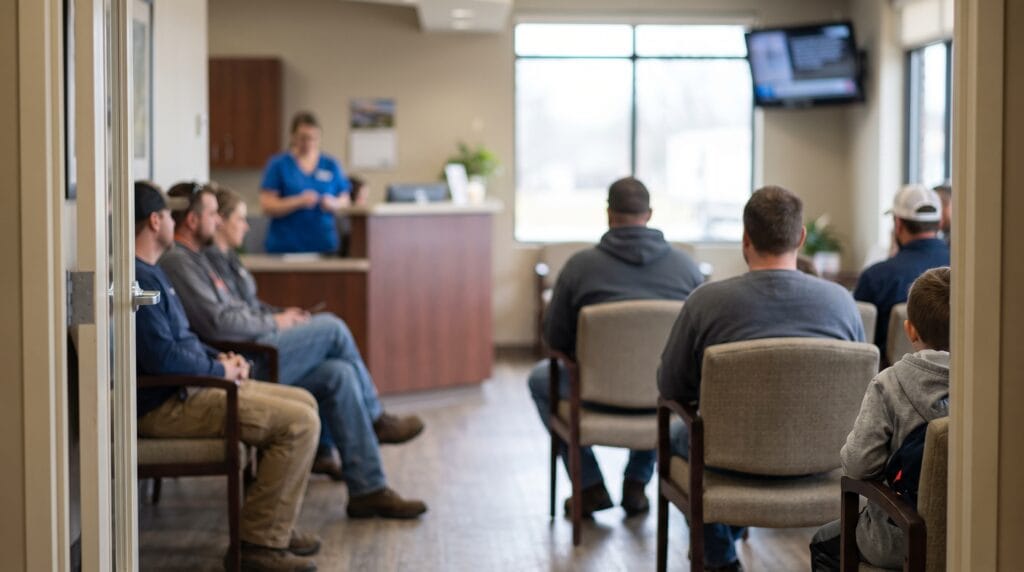
Place screens where seated patients can comfortably see them. Choose the size and text based on viewing distance and sightlines. Start with the locations that serve a clear purpose, rather than assuming every practice needs the same number of TVs. Our guide to choosing the right screen size covers distance and readability, and the page on how digital signage works shows the steps from player to screen.
Mirroring the front desk computer. Keep the display on its own content, away from the system staff use to see patients. A desktop notification or an open scheduling window can expose information you never intended to publish.
Assuming uploaded content is safe because there is no records integration. Review files, images, and feeds for patient information before adding them.
Leaving old announcements on screen. Give one person ownership of the schedule, and set an end date whenever you add something time-limited. Check that the feature is included in your plan.
Treating a product claim as a compliance decision. Describe what the setup actually does, and have the appropriate person review any use involving patient information.
Where SmartSign2Go fits
For a practice that wants scheduled announcements, service information, and educational content, the Advantage plan is a practical starting point at $24 per screen per month, plus a player. Essentials starts at $19 per screen per month; hardware is purchased separately.
Players ship already configured. Free staff training helps the people updating your screens get started. You can run public waiting room content without connecting to patient records; staff still need to keep patient information out of uploaded files and connected feeds.
Compare current plans and hardware on our pricing page. To see how the software works, book a demo or call (844) 888-7446 Monday to Friday, 8am to 5pm Pacific. Our team in Wenatchee, Washington can help you choose a setup for your practice.
Yes. Office announcements, provider introductions, services, and general health education do not need a patient-record connection. Review uploaded content and connected feeds to keep patient information out.
Can a waiting room screen show patient names?
That depends on the purpose, information displayed, safeguards, and applicable requirements. HHS permits certain limited uses of patient names in waiting rooms, but its guidance is not blanket approval for a digital patient list. Have your privacy lead review the proposed use.
Does using ticket numbers eliminate privacy concerns?
No. Numbers can reduce identification, but their context and connection to other information still matter. Review how the system assigns and displays them.
What happens to the screens if the internet goes down?
SmartSign2Go players keep playing cached content when the internet drops. Live feeds and streaming need a connection. Test the content you plan to use so you know how your screen behaves during an outage.
Which SmartSign2Go plan includes scheduling?
Advantage includes scheduling and starts at $24 per screen per month. Enterprise also includes scheduling. Check the pricing page for current features and prices.
This article is general information, not legal advice. Check HIPAA questions with your compliance officer.