Somewhere in your building there’s probably a sheet of paper taped to a wall that’s wrong. The hours changed, or the class schedule moved, and nobody reprinted it. Most people start looking for a screen right about then.
If signage landed on your desk on top of your regular job, you have 5 realistic ways to handle it, and each comes with its own unique set of trade-offs.
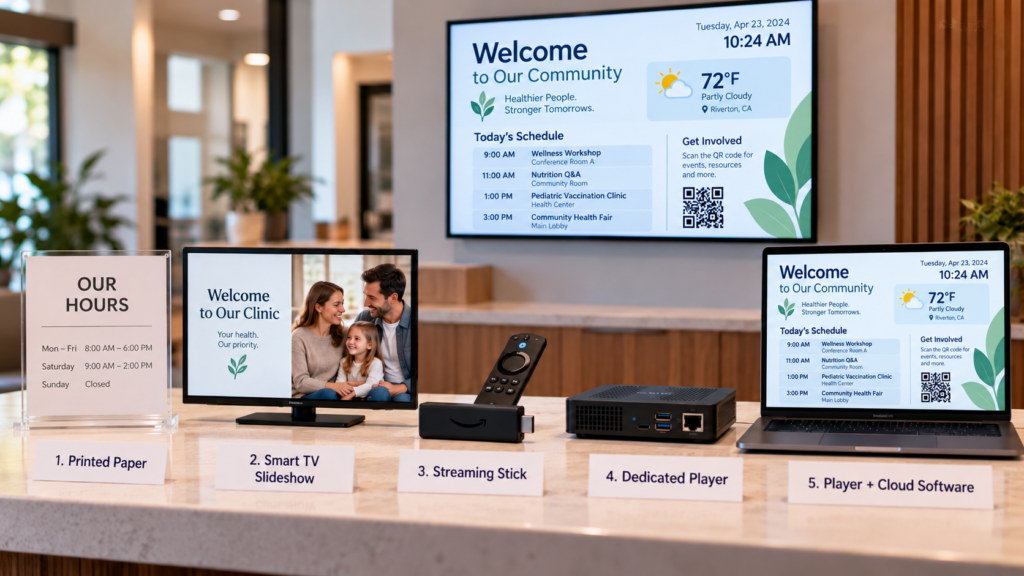
There are 5 common setups, and they differ mainly in how much work falls on you after day one. Every digital signage setup, however simple, comes down to the same parts. Purdue University IT notes that “most applications contain three components to make things work”: a display, a device that plays the content, and software that controls it. The options below are different ways of filling those slots.
| Option | Works well when | What tends to break | Who fixes it |
|---|---|---|---|
| Printed paper | The message almost never changes | Signs go out of date and nobody notices | Whoever walks by and spots the mistake |
| Smart TV slideshow | You have one TV and a few slides | Slides stop looping, and updating means walking to the TV | The person who made the slides |
| Streaming stick | You want video or web pages on a TV cheaply | Freezes, restarts and consumer-grade updates | The person nearest the TV |
| Dedicated player | The TV has to run all day, every day | Content still has to be loaded somehow | Depends on what software you pair it with |
| Player plus cloud software | Content changes often and you aren’t on site | A weak Wi-Fi connection delays updates | You, from a browser or phone |
When a setup fails, someone has to notice, and someone has to know what to do about it.
Paper is the right answer when the message is permanent, like a fire exit map or a posted license. It costs nothing to maintain and nobody has to restart it. Once the information changes more than a few times a year, paper becomes a chore that never quite gets done.
The real problem with paper is that a wrong sign looks exactly like a right one. Harvard’s privacy and security office warns that “If not managed carefully, signage may display wrong, outdated, or misleading information, causing confusion.” That warning is written about screens, but paper has the same weakness, and nobody is even checking it. If you reprint more than a few times a year, a screen you can edit in minutes will save you the trips.
It can, for one TV with a handful of slides that rarely change. Most smart TVs can loop photos from a USB drive or a shared folder, and you already own the hardware. For a single lobby display, that’s the lowest-effort first step.
The limits show up quickly. A slideshow from a USB drive is what Wikipedia calls a standalone system: “Standalone systems, by contrast, operate without a network connection.” That’s fine until you want to change a slide. Then someone pulls the drive, edits the file, and walks it back to the TV.
The slideshow rarely supports a schedule, so last month’s sale keeps playing until someone removes it. Video, weather and live web pages usually aren’t supported either. And with 3 or more TVs, you repeat the same walk to each one.
If you have one TV and the content changes 2 times a year, this works. Past that point, you’re doing by hand what software is supposed to do.
A streaming stick gets you further than a slideshow, and it’s the setup most small teams try before they buy anything else. It plugs into the HDMI port, joins your Wi-Fi, and can show video, slides or a web page.
Think of a stick like a family sedan: great for running errands, but not built to haul heavy freight. It’s made to stream entertainment, not to run a lobby display all day. When it freezes, the TV shows a black screen or a frozen frame until someone notices and restarts it. Harvard’s guidance lists the same family of problems: “Power failures, network issues, or software glitches can render signage useless, potentially impacting emergency notifications.” For a stick on a shelf behind a TV, “someone notices” can take a while.
Plenty of sticks run for months without trouble, so this isn’t a reason to avoid them. The question to ask is what happens on the day yours stops, and who is in the building.
A dedicated player is a small box built to do one job, which is to play signage content and restart itself if power drops. It replaces the stick’s weak spots with hardware meant to stay on. We’ve covered what to look for in our guide to digital signage players, including storage, offline playback and warranty.
A player is only half the setup, though. It still needs software to tell it what to show, and the software decides how much work you do each week. A good player with clumsy software leaves you updating things by hand. Pair it with good software and it can run for months without your attention.
Does the player arrive set up, or do you configure it yourself? A box that shows up with the account already linked means you plug it into the TV, enter a code and you’re done. On day one, that saves the front desk from hunting through menus, pairing accounts and testing settings with a line of visitors waiting. One that arrives blank turns installation into an afternoon of settings, and that afternoon usually lands on whoever has the least spare time.
Using hardware meant for digital signage also changes the failure pattern. Instead of occasional freezes you can’t predict, you get a device designed to restart and resume. Before you buy one, check whether it keeps playing content it has already downloaded when the internet drops. That detail separates a player you can forget about from one you’ll babysit.
Cloud software is the layer that lets you change every TV from a browser or phone. The player pulls down new content, and you don’t walk anywhere. Wikipedia describes the software’s role this way: “Digital signage software is responsible for content creation, scheduling, and management.”
Scheduling is the part small teams tend to underrate. The University of Michigan describes its more capable tier as including “scheduled content, video/animation, live data feeds, and multi-region content templates.” A holiday announcement can end itself on the right date, and nobody has to stand at the TV to take it down.
You do need a working internet connection to push changes, and somebody still has to write the content. Donna, associate director of events and engagement at Jacksonville University, describes what fast updates feel like on the Welcome Center screens: “For us it’s now instant gratification, you can update it and it’s on the screen within 20 seconds.”
One limit sits outside the software. A campus IT office may offer signage as a service, but the University of Wisconsin–Madison’s IT group states plainly that “DoIT staff have limited ability to manage, create content, or train your staff.” Whether the vendor, your IT department or you will be the one answering the phone is worth settling before you buy.
The right one is the simplest setup that still works on the day the person who built it is out. Work through 3 questions in order.
Next, name an owner. Give one person responsibility for keeping the screens current, and name a backup. Settings that a single person understands tend to disappear when that person changes jobs.
If your team is in healthcare, add one more check. Content shown in a public waiting room should be approved for public viewing, and our privacy-focused waiting room guide goes through what to leave off. Harvard’s guidance flags the same risk: “Sensitive or private information could be accidentally displayed to the public.” If you want to see how other kinds of teams run their screens, the industries page lists them.
Buying hardware before deciding who will run it is the most common one. A player in a box doesn’t update itself, and a TV with no owner goes stale within weeks. Decide who edits the content and who checks the TVs before you order anything.
Plenty of teams also test a setup only in the best case. Unplug the network cable and the power for a minute, then see what the TV does when it comes back. A setup that recovers on its own is worth more than one with a longer feature list.
Many assume their first setup is permanent. Teams often start with paper, move to a stick, and outgrow it. That’s a normal path, so pick the option for the next year and not for the next decade.
Skip the preview and you’ll hear about bad colors from a visitor. Check every new slide on the actual TV before you leave, because text that looks right on a laptop can look different across a lobby. Size and spacing vary by TV, so trust what you see on yours.
Digital signage means using screens to show information that you can change without reprinting anything. Purdue University IT calls it “a very broad term for any form of digitally-controlled signs/signage.” Common uses include event schedules, menus, directories and announcements.
A waiting room TV that shows your hours, services and a short welcome is a common one. A gym might show class times, and a salon building might show a directory of suites. The point is that someone updates it in minutes instead of reprinting.
Usually not. Any TV with an HDMI port can work with a player, so the TV you already own is often enough. Check the port and the TV’s mounting before you assume you need to replace it.
SmartSign2Go sells players that ship already set up and cloud software that you pay for per screen. Plans run from $19 to $36 per screen per month, and players cost $149 or $279. You can see both on the shop page.
If you want a player that arrives set up and software your front desk can run, our players ship configured from Wenatchee, Washington, and a person answers the phone. The Advantage plan, our most popular, adds scheduling by time, day or month. Plans start at $19 per screen per month, and you can see the options at the shop and the pricing page. There are no contracts. If you’d like to talk it through, book a demo or call (844) 888-7446.