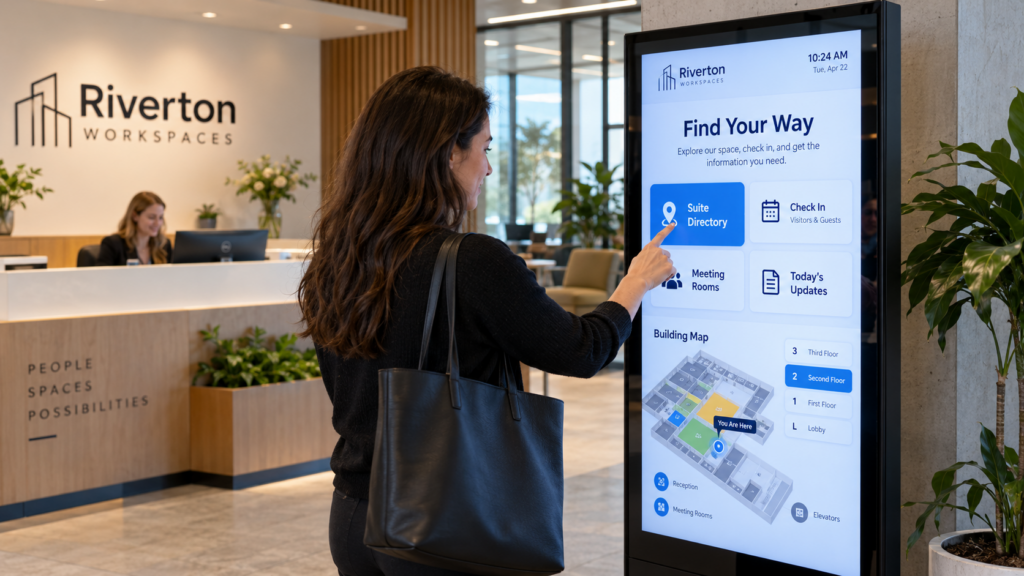
If a visitor walks into your lobby and asks the front desk where Suite 14 is, you already know the question touch signage tries to answer. A directory on a touch display lets people find the answer themselves. Whether that’s worth setting up is a separate question. (source: en.wikipedia.org)
You probably coordinate signage across several locations, and signage is one job among many. Nobody is a full-time signage operator, and every extra thing to maintain gets multiplied by the number of sites.
It’s signage software that lets a visitor act on the display instead of only watching it. Wikipedia describes interactivity as users interacting directly with displays through touch, gestures, voice or proximity sensors. Freestanding self-service kiosks are a different purchase with their own hardware.
Plain signage software plays pages on a schedule. Wikipedia lists content creation, scheduling and management as the software’s job. Interactive software adds a layer on top. A visitor taps a menu, a map or a form, and the display responds.
Think of it as the front desk person who knows every suite number, standing in the lobby with nothing else to do. Your team still builds the pages. The visitor only chooses the path through them.
The label covers a lot of ground, from a single tap on a directory to gestures and sensors that read who is standing nearby. Ask each vendor to show you the exact thing you want a visitor to do.
Touch earns its place where a visitor needs to find or choose something in the moment. That usually means finding the way to a room, choosing from a menu, or checking in.
| Use | What the visitor does | What your team keeps current |
|---|---|---|
| Directory | Taps a name or suite number to see where to go | Names, suite numbers, floor maps |
| Menu or catalog | Taps a category to see items | Items, descriptions, what’s available today |
| Check-in or sign-in | Enters a name or picks a reason for the visit | Form fields, and who receives each entry |
Look at the right-hand column before you decide. Touch moves work from the visitor to your team, because every tappable item has to be right at every site.
A personal feel doesn’t always need touch, either. Jacksonville University shows each visiting student’s name and hometown on Welcome Center screens. Donna, associate director of events and engagement at Jacksonville University, said in the customer story: “The goal was to be able to have a student feel very personalized in their experience when they came to campus.” That feel comes from what you put on the display. Touch is one way to add it and it isn’t the only one.
You probably don’t need touch if the information changes but the visitor’s question stays the same. Hours, events, closures, welcome messages and announcements all fit that description. People read them as they walk past, and your team updates them from a phone or computer.
A library posting events and closures is a good example, and our guide to library digital signage shows how little interaction that takes. The same goes for a lobby greeting or a shop-floor notice. Nobody has to tap anything to read them.
Touch also needs a reason for someone to walk up to the display. A display in a busy hallway, mounted where people pass at speed, rarely gets that. If your visitors don’t stop, a clear message they can read in two seconds does more for them than a menu they never open.
When one person runs several sites, ask a simple question. Does the visitor need to choose, or only to be told? If they only need to be told, skip touch.
A lot more than most people expect, and none of it needs a finger. Many cloud signage tools can animate text, move smoothly between pages, change content by time of day and pull in live information such as calendars, web pages and spreadsheet data.
For a multi-site coordinator, that covers a lot. Lunch specials can appear at 11 and disappear at 2. A calendar can update itself at every location, so nobody retypes it eight times. A moving headline can catch the eye of someone who would never walk up to a menu. If you work in a clinic, gym or plant, the industries page shows how people in your line of work use signage.
It asks for an owner, a privacy plan, and a plan for the day it stops working. Each one is small on its own, and each one gets skipped when nobody is assigned to it.
Start with the owner. The University of Denver’s Digital Media Services says it will procure and install the hardware, provide access to software and templates, and offer training and support so departments can manage their digital signage independently. Even a large school builds the handoff to the person who runs the content. Give one person responsibility for the touch pages, and name a backup.
Then check privacy. Harvard’s security office warns that some systems include cameras or sensors that may violate student privacy or privacy laws. Ask any vendor whether the setup you’re considering uses a camera or sensor, and what it records. If the answer is nothing, get that in writing. Our guide to keeping private information off a public display covers what to leave off a lobby screen.
Next, think about people who can’t use a touch display the way most visitors do. Accessibility requirements can apply to public buildings, so ask how a visitor who can’t reach or tap the display gets the same information.
Finally, plan for the bad day. Harvard lists power failures, network issues and software glitches as ways signage can become useless. Decide what a visitor should see when the touch layer isn’t working, and who gets the call.
Hardware matters too. A TV with no touch input won’t respond to a finger, so check whether the display you own accepts touch before you plan around it. Our player buying guide and our guide to choosing the right screen size cover the hardware side.
Choose by the one thing a visitor should be able to do, then test that thing in a demo. Write it down as a sentence first, such as “A visitor finds a suite number in under a minute.” Every question below checks it.
| What to ask | What a good answer sounds like |
|---|---|
| Which plan includes touch? | A plan name you can find on the vendor’s pricing page. |
| What display does touch need? | A specific display type, not “most screens.” |
| Who builds and updates the touch pages? | Your own staff, with training. |
| What shows if nobody touches it? | A loop of useful content, not a blank prompt. |
| What happens when the connection drops? | The display keeps showing something useful. |
| Who do I call, and when do they answer? | A person with posted hours. |
Pick the two or three questions that matter most for your sites and ask them on the first call. A vendor who answers plainly is easier to work with later.
Before you shop, write your one-sentence visitor task and list the sites where it applies. If the list is short, you may only need touch at one entrance.
The most common one is buying touch for a problem that a faster update would solve. If the real complaint is that the printed sign is always wrong, a display your team can change in minutes fixes it. Touch adds upkeep on top, and you may not need it.
Another is building a menu with too many levels. Visitors give a directory a few seconds, so keep the first page to the choices people ask the front desk about most. Put the rest a tap or two behind it.
Teams also forget the idle state. Most of the day the display sits untouched, so give it a loop of useful content that invites the first tap. A blank “touch to begin” gets ignored.
The last mistake is launching at every site at once. Pilot it at one location, watch what visitors actually tap, and fix the pages before you copy them to the rest.
Not always. Wikipedia lists touch, gestures, voice and proximity sensors as input methods. Touch suits a directory or check-in because visitors already know how to tap, and it needs a display that accepts touch.
Only if it accepts touch input. A standard TV won’t respond to a finger. Check the display’s specifications or ask the vendor before you plan around it, and if the TV doesn’t accept touch, you can still show directories and menus without it.
Touch doesn’t need one. Some systems add cameras or sensors for audience analytics, and Harvard’s security office warns these may raise privacy problems. Ask the vendor what any camera records.
Touch interactivity is part of the Enterprise plan, which also adds HQ-to-branch content push for multi-site teams. Plans start at $19 per screen per month, and the Enterprise price is on the pricing page. Players and plans are in the shop.
Touch interactivity is included in the SmartSign2Go Enterprise plan, which suits teams that push content from headquarters to several branches or need a touch directory. Teams who only need messages that change quickly can start on a lower plan. Plans start at $19 per screen per month, and you can see the players and plans at the shop and the pricing page. Our phone is (844) 888-7446, answered Monday to Friday, 8am to 5pm Pacific, and you can book a demo to see what touch looks like on your own pages.