
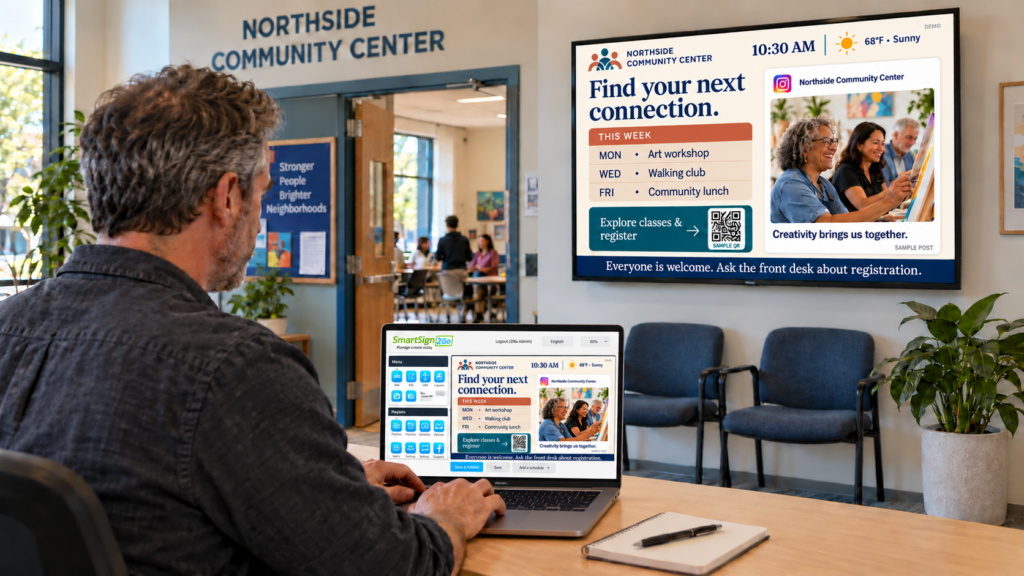
The sign by your front desk still lists last month’s hours. Someone has to print a new one, find the tape, and hope nobody notices the old one in the meantime. A digital signage system replaces that routine with something you change from a phone or a desk.
This guide is for the person who got handed the screens, usually an office or practice manager who has five other jobs. You don’t need an IT background.
The three parts are the display, the player and the content software, and each one does a different job. The display shows the picture. The player holds your content and sends it to the display. The software is how you create that content and schedule it.
The split shows up in published guides once you look for it. The University of Michigan’s tiered signage specifications list display, player device and content management as separate line items for each service level. The International Telecommunication Union’s 2011 Technology Watch report gives media players and content management systems their own sections. Different words, same three jobs.
| Part | What it does | What to check before you buy |
|---|---|---|
| TV | Shows the picture people see | Does it have an HDMI port, and is it rated to stay on all day? |
| Player | Stores your content and plays it on the TV | Does it keep playing if the internet drops, and who sets it up? |
| Software | Lets you build slides, schedule them and update them | Can the person who updates it learn it in an afternoon? |
Most of the time, no. Check the back of yours first.
There is one fair caveat. Some TVs are built for a few hours of evening viewing, not for running from opening to closing every day. Oregon State University’s technology office says plainly that consumer quality displays are not appropriate for “always on” use. A small office with one TV by the front desk is in a different position from a campus, but it’s worth knowing the trade-off. A commercial display is built for long days. A home TV usually works, and you’ll want to turn it off at night or set a sleep schedule.
Give one person the job of checking the TV once a month. Ask that person to look for burn-in, a dim panel or a remote that has wandered off. It takes about as long as watering a plant.
If you’re still deciding how big a TV to buy, we cover that in choosing the right size digital signage screen. Size depends on how far away people stand, and your own room will tell you more than a rule of thumb will.
The player is the small box between your TV and your content. It plugs into the HDMI port, joins your Wi-Fi, downloads your slides and plays them in order, all day. The TV is what people look at. The player keeps the TV doing the same thing reliably.
That’s why the player matters more than it looks like it should. If it stops, the TV goes dark or freezes on one slide, and the first person to notice is usually a customer.
Many people start with a consumer streaming stick, because it’s already in a drawer. A stick is built for watching shows on a couch, so it can work fine for a while and then need someone to walk over and restart it.
A player made for signage does one job all day. It keeps playing content it has already downloaded when the internet goes down, it restarts on its own after a power cut, and someone can help you when it won’t connect.
Oregon State’s technology office puts the working life of a signage player at 3 to 5 years, so it’s a part you buy once and then mostly forget about. Ask the seller what the warranty covers before you decide. We go through the options in more detail in digital signage players: what to buy for small teams.
The software is where you build slides and decide when they play. You log in from a laptop or phone, pick a template, add your text and photos, and publish. The player then picks up the change and shows it on the TV.
This is the part you’ll touch every week, so judge it most carefully. Software that takes a training course to use ends up owned by whoever has the most patience, and everyone else stops updating the screens.
Beth Gillespie, who handles membership at Saco Sport & Fitness in Saco, Maine, put the everyday test simply in her club’s customer story: “Easy, easy to change the messages. I can do it from home.”
Harvard’s information security office lists one risk for signage that has nothing to do with hacking: “If not managed carefully, signage may display wrong, outdated, or misleading information, causing confusion.” That’s the paper-sign problem again, now on a TV. The fix is a routine, and good software helps you keep it.
When you try a tool, test it the way you’d really use it:
If you can do all four in one sitting, the software suits a team with no full-time operator. If you get stuck, ask what help is included before you pay for anything.
Four practical things sit around the three parts: power, a network connection, a way to mount the TV, and a person who owns the content. None of them is exciting. Skipping any of them is how a working system ends up dark.
Harvard’s guidance names the operational side directly: “Power failures, network issues, or software glitches can render signage useless, potentially impacting emergency notifications.” You can’t prevent a power failure, but you can choose a player that restarts by itself afterward and holds content in memory while the network is down.
Check that there’s an outlet near the TV, so no cord runs across a walkway. Check that the spot gets Wi-Fi, or that the player accepts a network cable if it doesn’t. Check that the wall is solid and the TV sits at a height people can read. Then settle who updates the screens, and who covers when that person is out.
Answer that last one in writing, even if the answer is a first name on a sticky note. Screens that belong to nobody go stale within weeks.
A three-screen setup involves three TVs, three players and one software account, and you run all of it from a single dashboard. You don’t build three separate systems. You build one set of slides and decide which screens show which slides.
Three screens is a common size for a small office, clinic or gym: one at the front desk, one in the waiting area and one somewhere staff walk past. Here is the order that tends to go smoothly:
Some sellers configure the player before it ships, so steps 4 and 5 shrink to plugging in and entering a code. Ask whether yours does. If you’re planning your first rollout, how to start a digital signage program with a small team walks through the first month.
For ideas on what to put on the front-desk TV, see reception area digital signage: what to put on it. If you run a medical or dental practice, waiting room digital signage without the privacy risk covers what to keep off the screens, and our industries page lists other types of business.
The most common mistake is buying the TV first and thinking about the other two parts later. A TV on the wall looks like progress, but it’s the part you can swap most easily. Start with who will update it, then pick the software, then pick the player.
The second is using a device that wasn’t built for all-day use. A stick that restarts when it feels like it, will eventually restart in front of a customer. Pick a player that handles power cuts and a dropped connection on its own.
The third is forgetting to retire old content. A slide that says “Flu shots start Monday” in March teaches people to ignore the screen. Set an end date whenever you add something time-limited.
The fourth is treating the system as finished once it’s on. It needs a weekly glance from one named person, so put that glance on their calendar.
The last is placing the TV where it blocks a walkway or sits in glare. Harvard’s guidance also covers physical placement, since poorly placed screens can obstruct pathways or distract people in areas that need focus. Hold the TV up where it will hang before you drill, and look at it from the doorway.
A digital signage system is a screen, a player and software that work together to show content you control. Harvard’s security office describes the range as a screen in a common area with rotating slides, up to dynamic content like transit info or class schedules. Small teams usually start with the simple end.
Sources count them differently. The core is a screen, a player and software. Around those sit four practical elements, which are power, a network connection, mounting and a person who owns the content. Check all seven before you buy, since a gap in any one can leave a screen dark.
Not if your TV has an HDMI port. A player plugs into it and does the rest. If the TV will run all day every day, check whether it’s rated for that. A commercial display is built for long hours, while a home TV may need a nightly shutoff.
It depends on the player. Some keep playing content they’ve already downloaded, so a slide like “Closed Monday for the holiday” still shows. Live content such as weather or a web page needs a connection. Ask the seller exactly what keeps playing offline.
Players ship already set up and plug into any HDMI TV.
Players ship already set up, there are no contracts, and a person answers the phone at (844) 888-7446, Monday to Friday, 8am to 5pm Pacific. If you’d like to see the software before deciding, book a demo and we’ll walk through a three-screen setup with you.