
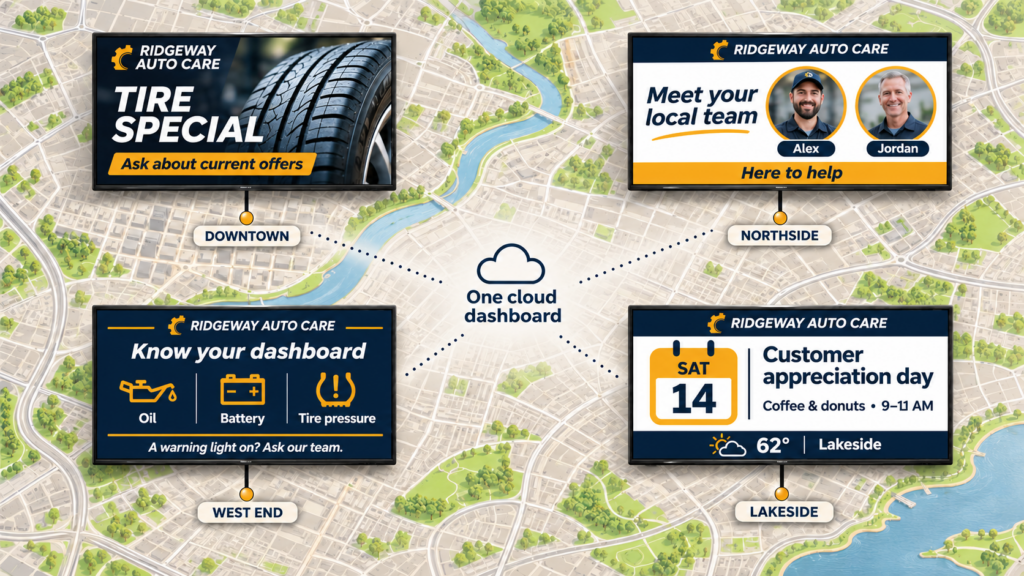
If you coordinate marketing for more than one location, you probably know the old routine. A promotion changes, you email a file, and three days later one branch is still showing last month’s offer. Nobody did anything wrong. The file just had to pass through too many hands, and each of those hands had a full day of other work.
A cloud dashboard removes the hand-offs. It also raises a question. If everyone can change everything from anywhere, who should?
It keeps one copy of your content online and lets every location fetch it. You keep the master version in your dashboard, not on any TV. Researchers who study this describe displays connected directly to cloud services, from which they retrieve both their settings and their content.
Think of the dashboard like a TV station. You decide what airs and when, and each location tunes in. That matters most when your sites aren’t next door. You don’t drive to a branch, plug in a USB stick or call someone to press play. You edit once, and every location has the change at its next check-in.
One review site notes that screen-group targeting for playlist rollouts keeps different locations on different schedules. That’s the part you’ll lean on: the same dashboard, but not necessarily the same content at every site.
Start with the smallest group that can do the job, then add people only when a real need shows up. Most multi-site problems come from too many editors, not too few. A branch manager who adds one well-meant slide can break a brand look you spent a year building.
A split that works for many small teams has three levels. Check which of these your software supports before you commit, because not every tool divides access the same way.
| Role | What they can do | Who usually fills it |
|---|---|---|
| Central owner | Builds templates, sets the brand look, publishes to all locations | You, or one backup person |
| Location editor | Changes local slides: hours, events, staff, local specials | A branch manager or front-desk lead |
| Viewer or reviewer | Sees what’s playing and flags problems | Regional manager, owner, IT |
Central content is yours. Local content belongs to the location, inside a template you built. Anyone outside both groups can look but not touch.
Large organizations use the same idea. One university’s digital signage guidance asks building managers to consider priority posting for executive-level mission-centric content. Your version is simpler. Company-wide messages go on top, and local slides fill the space around them.
Ask every editor to check with you before changing central content. A short note in your team chat is enough. Then name a backup for yourself, so a vacation doesn’t leave a branch stuck on an expired offer.
You publish in your dashboard, the change goes to the cloud, and each location downloads it at its next check-in. You never push anything directly to a TV. That’s why a change can land in seconds at one site and noticeably later at another, depending on each location’s internet.
Four things decide how fast a change shows up at a location:
When a branch tells you it still shows the old content, check those four in order. Number four causes more confusion than people expect, because the slide exists but was never sent to that group.
Before anything goes live, have someone look at it. The same university guidance asks posters to double-check their slide to make sure the content is accurate and complete. Preview in the dashboard first. Then look at it on an actual TV, because color and spacing can look different on a wall than on your laptop.
Start with one location, run it for a few weeks, fix what you learn, then add the next. A staged rollout costs you a little time and saves you from fixing the same mistake at every site at once.
Take it in this order:
Keep the pilot honest. If the first manager says it’s confusing, believe them. The next ten managers will feel the same, and they won’t tell you as politely.
It also helps to read how others started. Our guide on starting a digital signage program with a small team covers the first month in more detail, and the tools a small team really needs helps you decide what to skip.
Ask whether the player keeps playing what it already downloaded. That one answer separates a player you can forget about from one you’ll babysit. Hardware built for signage restarts and resumes on its own, which is one reason we’ve written about using hardware meant for digital signage.
The catch is live content. A weather feed or a streaming video needs a connection, so a branch with shaky Wi-Fi will show stale or missing live items while its saved slides keep running. If one site has a history of outages, lean on saved slides there and keep live feeds to a minimum.
Ask a vendor how you’d find out that a player went offline. Some tools email you. Others make you look at a dashboard. At several sites, a quiet failure can last a week before a customer mentions it.
Yes, if the structure is simple. What tends to hold up is a central template, local slides inside it, and one person who owns the overall look. Different groups of screens can then follow different schedules, such as one for locations that open early and another for those that close late. If you’re still weighing ways to run screens, five ways to run your screens sets out the trade-offs for each.
Giving everyone full editing rights on day one feels generous. Then a local slide covers your national promotion. Start tight and open up as people show they’re comfortable.
Rolling out to every site at once is the quickest way to multiply a small error. A typo or a color problem in the template means fixing a dozen places instead of one, usually while a regional manager asks why the lobby looks wrong.
Expired content makes the whole display look neglected. A promotion that ended last month is the usual culprit, so give every time-limited slide an end date when you create it.
Don’t assume every location has good internet. Check each site before you rely on live content there.
And name an owner. Nobody notices a quiet failure until a customer does, so pick one person who checks each location on a set day and write down what they look at.
It’s signage where content is stored and managed online instead of on a local computer. A small player at each TV downloads your content over the internet, so you can update screens at any location from a browser without visiting.
Usually, yes. That’s the main reason multi-site teams choose cloud software. Look for tools that let you group locations and set different schedules for each group, and ask how access is divided between central and local editors.
A good player keeps showing content it already downloaded. Live items such as weather or streaming video need a connection, so they may stop updating. Ask any vendor exactly what keeps playing offline before you buy.
Start with one. Run it for a few weeks, fix what you learn, and then add sites in small groups. A single pilot location shows you problems while they’re still cheap to fix.
SmartSign2Go sells cloud signage software with a pre-configured player that ships ready to plug in. Plans start at $19 per screen per month for the Essentials Plan. You can see the full range at the shop page.
For several locations, the Enterprise plan is the one that includes company branding control, advanced security and alerting controls. Plans start at $19 per screen per month with Essentials, and players ship already set up.