Somewhere in your plant there’s probably a paper evacuation map on the wall by the break room, next to a sheet somebody laminated years ago. If the plan changes today, who reprints it? And if something goes wrong at 2 p.m., how many people walk past that paper without reading it?
A digital sign can replace that paper with a message that appears on every screen the moment someone sends it. Some universities already require this. Penn State’s policy says all digital signage installed on its campuses must include the ability to display emergency messages. Your fire marshal, insurer and local rules decide what you’re required to do.
An alert reaches a sign in one of two ways. A person with permission types or picks a message and sends it, or another system sends it automatically. Either way, the alert interrupts whatever the sign was playing and shows the emergency message instead.
The automatic route is the one large institutions lean on. Penn State’s policy says its goal is to ensure that emergency notifications are delivered automatically to digital signage posted in University buildings. The University of Michigan’s signage service says U-M emergency alerts are automatically displayed on all signs.
A small team usually starts with the manual route. Somebody you’ve chosen sends the message from a dashboard, and the same dashboard tells the screens to go back to normal afterward. The automatic route can come later. Wait until the manual one works every time you test it.
An event trigger is the condition that tells signs to switch content. The condition might be a person pressing send, a signal from another system, or a time. Before you choose a tool, decide who holds the trigger.
One university’s support page says its alert feature is only available to the Public Safety and Administrator accounts. That’s a sound pattern. Most staff can edit the lobby slides, and only a few named people can interrupt every screen.
The table below turns that pattern into 4 decisions you can settle in one meeting, and it shows who usually owns each one.
| Decision | Question to settle | Who usually owns it |
|---|---|---|
| Who can send | Which 2 or 3 people may interrupt every screen? | Safety lead or office manager |
| What starts an alert | A person pressing send, a connected system, or both? | Safety lead with IT |
| Which screens | All of them, or one building or area? | Safety lead |
| How it ends | Who clears the message, and how do you know it cleared? | The same sender |
The last row gets skipped most often. An alert that nobody clears keeps scaring people long after the problem is over.
The tool is the same in each place, but the people reading the sign and the reason they’re looking differ. That changes what you put on it.
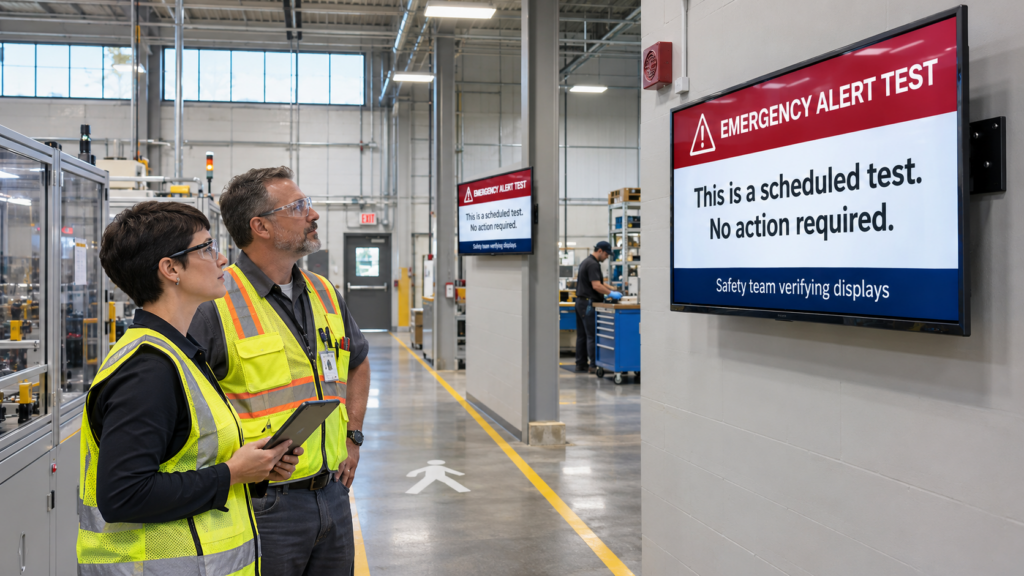
On a shop floor, people aren’t at a desk, so a TV on the wall may be the only place a message reaches them. A plant safety lead might want one message for a fire evacuation, another for a chemical spill and a third for severe weather. Each one names the exit to use and the place to gather. Noise and distance matter here. Plan for text people can read from far away, and for a second channel like a horn or a radio that doesn’t depend on the sign.
Campuses already run alert systems, and signs are one more channel. The University of Arkansas schedules tests, announcing that messages will appear on screens using these platforms for approximately five minutes during a test window. A campus department that wants to see how people in its line of work set screens up can look at our industries page.
A town hall lobby reaches residents who walked in for a permit, not for news. The sign supports your other channels and doesn’t replace them. Geary County, Kansas tells residents to use one of the Geary County information sources instead of calling 911 for disaster information, and it lists several, including a regional alert program and NOAA Weather Radio, a nationwide network broadcasting forecasts, warnings, and emergency information 24 hours a day. A lobby sign is one more item on a list like that.
Write less than you think you need. Say what happened, what to do and where to go, in plain words. Nobody reads a paragraph while an alarm is sounding.
For example, “FIRE ALARM. Leave by the nearest exit. Meet at the north parking lot. Do not use elevators.” That’s the whole message. Check your own wording with your safety officer or local authority, because they know what your building requires.
Do the setup on a calm afternoon, with the people who would actually be on duty. Every step has an owner, and the whole list fits on one page. If you’re building a signage program from scratch, our guide to starting a digital signage program with a small team covers the steps around this one.
Start with step 1. A tool with a perfect alert feature is useless if nobody knows who’s allowed to press the button.
An alert that has to arrive over the internet can’t arrive while the internet is down. That’s true of every cloud-based sign, and you should ask any vendor how they handle it.
A community group at the W3C, the web standards body, has published a draft profile for signage players that recommends being capable of uploading emergency information from administrative devices if the connection with the content management system is lost. It’s a community draft and not a W3C standard, so treat it as a list of good questions and not a requirement.
There are 2 parts to this. First, what does the player show when it’s offline? SmartSign2Go players keep playing content they’ve already downloaded and restart on their own after a power cut, which we cover in our guide to choosing a player. Second, how would you find out a player went offline before you needed it? Ask whether the vendor sends a warning when a player drops off. Hardware built for the job matters here too, and we explain why in use hardware meant for digital signage.
A sign is also never your only warning. Keep the horn, the radio and the phone call. The sign adds a place where people actually look.
Fast enough that speed is rarely the problem. Donna, associate director of events and engagement at Jacksonville University, said of the Welcome Center screens: “For us it’s now instant gratification, you can update it and it’s on the screen within 20 seconds.” You can read the full account in the Jacksonville University story.
That quote is about a regular content update, not an emergency alert. It shows how quickly a connected screen changes once someone sends a change. Your own test will tell you the real number for your site, so time it.
The most common mistake is that nobody tests. A team sets up the feature, feels good about it, and discovers a year later that 2 screens were never connected. Put the test on the calendar like a fire drill.
The second is letting too many people send alerts. If every front-desk employee can interrupt every screen, a mistaken message becomes likely. Keep the group small and give each person a reason to be on the list.
The third is writing a paragraph where a sentence would do. People walk past the long ones.
The last is treating the sign as the whole plan. It’s one channel. Your written emergency plan, your alarms and your local authorities come first, and the sign supports them.
A sign can show a message a person sends from a dashboard, or one that another connected system sends automatically. Some teams use both. Which you choose depends on who’s on site, how fast you need the message to appear, and what your local rules or insurer ask for.
A small, named group, usually 2 or 3 people, with one reachable on every shift. One university restricts its alert feature to Public Safety and Administrator accounts. Everyone else can edit regular content without being able to interrupt every screen.
Not if it has to arrive over the internet. A player can keep showing content it already downloaded, but a new message can’t reach it until the connection returns. Ask any vendor how offline players behave, and whether anyone gets warned when a player disconnects.
Players arrive already set up from our shop in Wenatchee, Washington, and you can browse them at smartsign2go.com/shop and compare plans at smartsign2go.com/pricing. If you’d like to talk through your site, book a demo and we’ll go through your screens with you. Our phone is (844) 888-7446.