If you run the front desk, the reception screen is probably one more thing on a list that already has 5 other jobs on it. So plan the screen around that list. A screen that only works when someone has a free afternoon will be wrong by Thursday. The real question is less about design and more about what’s worth putting up and who will keep it true.
Reception is also a good place to put effort. It’s usually the first part of your workplace a visitor sees, and people are standing there with nothing to do, so a screen gets read.
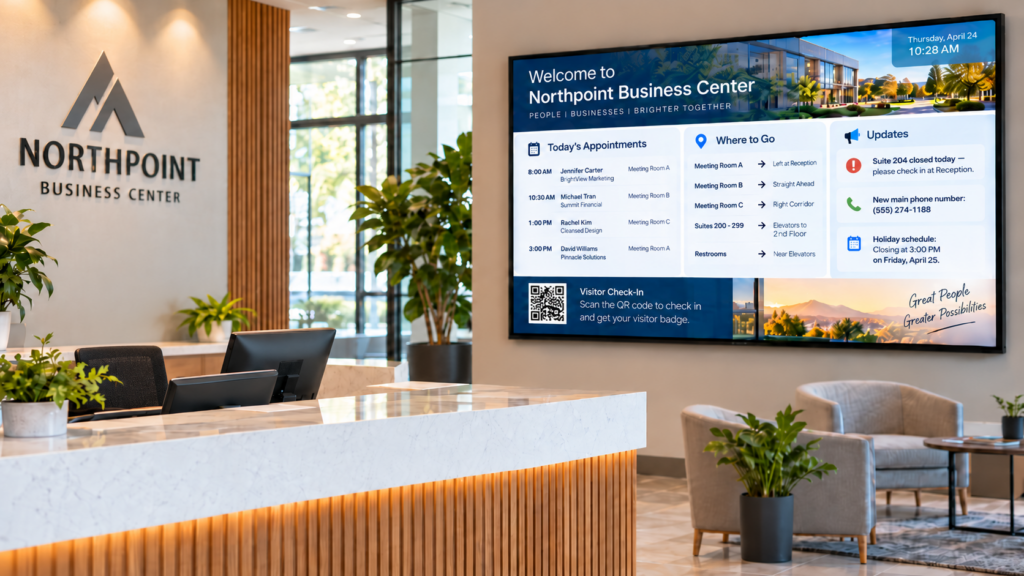
Start with whatever answers the question a visitor would otherwise ask you. That usually means a welcome, the day’s visitors or appointments (first names only if privacy is a concern), where to go next, and anything that has changed since last week, like a closed door, a new phone number or a holiday schedule.
There’s some research behind keeping messages tied to what the person in front of the screen is doing. A Journal of Advertising Research analysis of retail experiments found that shoppers “are most responsive to messages that relate to the task at hand and their current need state, and least responsive to traditional brand messages.” That was in stores, not offices, but the lesson carries over. Someone waiting for a meeting cares more about where the restroom is than about your mission statement.
The table below sorts the usual reception messages by how much work they take to keep right.
| Message | Example | Who owns it | When to check it |
|---|---|---|---|
| Welcome and directions | Welcome, parking validation, restroom location | Front desk | Monthly |
| Today’s schedule | Who is in, which room, which suite | Front desk | Every morning |
| Changes and closures | Closed Monday for the holiday | Office manager | Whenever it changes |
| Announcements | New hire, award, open enrollment dates | HR or marketing | Weekly |
| Community or promo slides | Seasonal offer, event poster | Whoever owns the promotion | Weekly, with an end date |
The messages that change daily should be the shortest and the easiest to edit. The ones that sit for a month can be a bit more designed, because you’ll only touch them once.
One named person, with a named backup. When 3 people can edit a screen and none of them owns it, each one assumes another will fix a wrong date.
Pick a weekly slot, say Monday after you open the mail, and give yourself 10 minutes. Open the slides, delete anything that has expired, add what’s new, and look at the screen from the visitor’s chair. If your software lets you set an end date when you add a slide, use it. Then the old announcement takes itself down, and you aren’t the only thing keeping the screen accurate.
Editing from wherever you are matters too. If a room changes at 8:50 and you’re not at your desk, a quick fix from your phone beats walking to the screen. Ask any vendor you’re considering whether the person who updates the screen can do it from a phone or laptop without installing anything on the TV.
Sometimes it’s just a directory. Marie, managing partner at Phenix Salon Suites in Orange, California, runs a location with 51 suites. In a customer story SmartSign2Go published, she said, “we have the digital signage in our lobby and we use it mostly for our directory.”
That’s a reception screen doing one job. A visitor walks in, finds the name and the suite number, and doesn’t have to ask. When a tenant moves in, the directory changes in one place. You don’t need a long slide loop for that to be worth having.
If your front desk answers the same 3 questions 50 times a week, that’s your directory. Write those questions down for a week and you’ll have your first slides.
Fewer than you think. A visitor may be at the desk for a few minutes, so a loop that takes 10 minutes to repeat means most people see a fraction of it. Aim for a handful of slides, each with one idea and text readable from across the room.
The format itself pulls attention, too. According to Indiana University’s digital signage knowledge center, a study of a free-tote-bag offer found that “only six people who saw the static ad claimed the free bag, compared to 610 people who saw the digital ad.” One study doesn’t promise your results. It does suggest that a screen people notice is worth keeping current, because a stale one wastes that attention.
They should be able to. Think of the screen as a road sign rather than a brochure. People take it in while they’re still moving, so each slide gets a few seconds.
Use large type, strong contrast, and no more than 2 short lines per slide. Then do the check that costs nothing: stand where a visitor stands when the door closes behind them and read every slide. If you have to squint, make it bigger. If you have to read it twice, cut it.
Leave off anything you can’t keep current. A countdown that has already passed, a staff photo of someone who left, or a “coming soon” that came and went will make a visitor doubt the rest.
Also leave off anything private. A reception screen is a public wall. Skip full names of patients or clients, medical details, and anything you wouldn’t say out loud in the lobby. If your office is in healthcare, this is general information, not legal advice. Check HIPAA questions with your compliance officer. Our industries page lists how different kinds of front desks use their screens.
Finally, skip long paragraphs. If a slide needs more than 2 short lines, it probably belongs in an email or a handout.
It should keep playing, for content it has already downloaded. A slide that says “Closed Monday for the holiday” doesn’t need the internet once it’s on the player. What won’t work offline is anything live, like a weather feed or a web page, so don’t make those the only thing on screen.
A more useful question to ask early is what the player does after a power cut. A good one restarts on its own and goes back to playing. Nobody should have to walk over and press a button on Monday morning. Our guide to what to look for in a signage player covers that checklist in more detail.
The biggest one is building a screen only you can edit. When you’re out sick, the schedule goes stale and nobody knows how to fix it. Write the weekly steps on a card and tape it inside a drawer.
Another is putting on everything at once. A new screen tempts people to add the logo, the mission, the team photo, the weather, the news and a promo. Visitors will be overwhelmed. Start with the directory and one announcement, then add things only when someone asks for them.
The third is forgetting end dates. Paper signs get taken down because they curl and fade. Digital ones just stay up looking fine and being wrong. Put an expiry on every time-limited slide the day you create it.
Last, a screen with no owner is a decoration. If nobody’s name is on it, nobody’s job includes checking it.
Start with a welcome, who’s in today, and where to go. Add changes like closures and new hours. Then add one announcement or promotion at a time. Everything on the screen should answer something a visitor would otherwise ask you.
Check it weekly and change it whenever something is wrong. Daily items like a visitor list need a quick edit each morning. Time-limited slides should carry an end date so they come down on their own.
Not if yours has an HDMI port. Most signage players plug into a regular TV and join your Wi-Fi. If the TV is old or very small for the room, our guide to choosing a screen size helps.
SmartSign2Go sells cloud signage plans from $19 per screen per month, plus two players that ship already set up: the Lite at $149 and the Ultra at $279. You can see both on the shop page.
This week, keep a tally at the front desk of the questions visitors ask. After 5 days, the 3 most common ones are your first 3 slides. Write down who will update them and on which day, and put that name on a sticky note where you’ll see it.
If you want more examples of how small teams use their screens, the published customer stories show what other front desks put up.
For a reception screen that one person updates, SmartSign2Go’s Essentials plan covers the basics, and the Advantage plan adds scheduling by time, day or month if you want slides to start and stop on their own. Plans start at $19 per screen per month, and the players ship already set up. You can browse the shop and the pricing page. To see what the weekly update looks like, book a demo or call (844) 888-7446, and a person in Wenatchee, Washington picks up Monday to Friday, 8am to 5pm Pacific.