Somewhere in your building there’s a piece of paper taped to a wall that’s wrong. The hours changed, or a price moved, or the class schedule shifted last week, and nobody reprinted the sign. A common reason people buy their first screen is that they want to get rid of all the 8.5 x 11 pages taped to the walls.
A screen fixes that. You change the message once, from your desk or your phone, and every TV in the building shows it. Old announcements can retire themselves on a schedule, so nobody has to remember to peel them off. A waiting room TV that was playing cable news can tell people about your own services instead, and it can show something different at lunch than at closing time.
People do notice screens. Indiana University’s signage guide cites a 2010 Arbitron study that found 70 percent of Americans had seen a digital video display in the previous month. A dark one gets noticed too.
That’s where the small box behind the TV comes in. If you’re the person who got handed the screens and you have another full-time job, this guide is for you. We’ll go through what to look at, in the order we’d look at it.
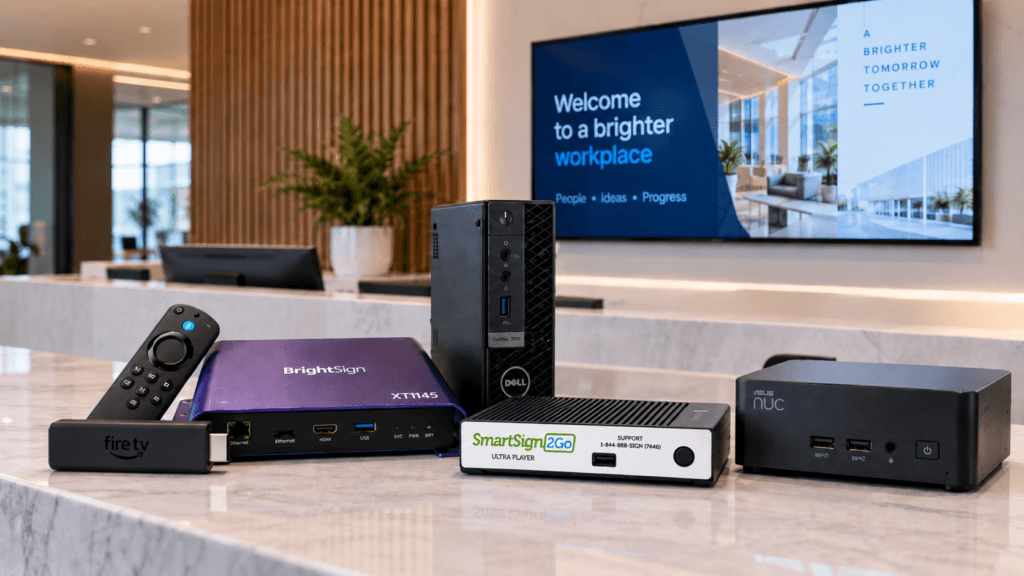
A player is the small box between your TV and your content. DisplayNow describes it as a specialized device that drives content to digital displays. It plugs into an HDMI port, joins your Wi-Fi or Ethernet, and plays the playlist you built in the signage software. That might be three slides about your hours, or a loop that changes by time of day.
The TV is only the glass. Any TV with an HDMI port will work. The player is the part that has to run all day, every day, and that’s why it deserves more of your attention than it usually gets. Futuresource Consulting reported $13.7bn of worldwide spend on signage hardware in 2023, a figure that covers professional displays and playback devices together.
What the player shows matters as well. The Journal of Advertising Research reports that shoppers respond most to messages that relate to the task at hand and their current need state. In a waiting room, that points to your hours, your services and today’s schedule.
One more thing before you shop. A player does nothing without a software plan, so you’re buying two things, not one.
You need a screen with an HDMI port, a player, a software plan, and Wi-Fi or an Ethernet cable. If you’ve got a TV and the Wi-Fi password, you can start. Nobody has to be a technician, but somebody has to own the player once it’s running.
A player that needs a babysitter costs more than its price tag. Someone has to walk over, unplug it and plug it back in. Meanwhile the screen is dark, usually on the one morning the front desk is short-staffed.
One story customers tell is about a consumer streaming stick. It works for a while, then it runs out of memory and wants a reboot, and the person who set it up has moved on to something else. Pybus Public Market ran its screens on a Fire Stick before it switched, and called that setup “super clunky.” You can read the whole conversation in the Pybus Public Market story.
Most buyer’s guides skip this question, and it’s where small teams get stuck. You can buy a bare box, install the app, sign in, fix the display resolution, and then work out why it won’t restart after a power flicker. Or you can buy one that the vendor has already configured, so it arrives ready to plug in, connect and register with a code.
The second route costs a little more attention at the buying stage and a lot less afterward. Ask any vendor three things: who sets it up, who updates it, and who you call when it stops. If the answer to all three is “you,” put a price on that time.
It should, for content it has already downloaded. A good player stores your playlist and keeps playing it with no connection, then restarts by itself after a power cut. A slide that says “Closed Monday for the holiday” doesn’t need the internet once it’s on the player.
There’s one limit. Live content, like a YouTube video or a streaming feed, needs a connection. So the question to ask is which of your screens show stored content and which show live content.
It also helps to know whether anyone tells you when a player goes offline. Some software plans include offline alerts and some don’t, so check before you assume.
Start with what your screens will show. If it’s images, text and Full HD video, a basic player is enough. If you want 4K video, more storage, or a player for a harsh room, you’ll pay more for it.
| What to compare | Why it matters | What to look for |
|---|---|---|
| Video resolution | Some players show 4K still images but only play Full HD video | Read the spec line for video, not just “4K” in the title |
| Storage | Holds your downloaded videos and images for offline play | Enough for your playlist with room to grow |
| Durability | A shop floor is harder on equipment than a dental waiting room | A published rating such as MIL-STD-810H, a US military test standard for equipment durability, if the room is rough |
| Offline playback | Keeps the screen working when Wi-Fi drops | Plays stored content with no connection |
| Restart after power loss | Nobody wants to walk over after a flicker | Restarts on its own |
| Setup | Decides how much of your week this takes | Arrives configured, or a clear guide and a person to call |
| Warranty | Tells you how long the maker expects it to last | A length that matches how long you’ll run the screen |
For a wall TV in a steady-temperature room, a basic player is usually enough. For a plant breakroom or a busy back hallway, a rated, sturdier one is worth the difference. If you’re not sure which kind of room you have, the industries page shows how different workplaces use their screens.
The player is a one-time cost per screen. The software plan is usually monthly, also per screen. Work the total out for your own screen count before you compare vendors.
| Cost line | How it’s charged | What to ask |
|---|---|---|
| Player | Once, per screen | What’s included in the price, and what’s the return window |
| Software plan | Monthly or yearly, per screen | Is there a contract, and is there a discount for paying yearly |
| TV or display | Once, per screen | You may already own it, since any HDMI TV works |
| Setup and training | Free or paid | Who does it, and does it cost extra |
| Support | Included or extra | Is a person on the phone, and in which hours |
Add the player cost for all your screens to twelve months of software for all your screens. That’s your year-one number. Then check whether paying yearly lowers it and whether a volume discount applies at your screen count.
A cheaper tool you support yourself is a fair choice if you have the time. Just make it knowing what you’re trading.
Ask how long it lasts and what happens when it ends. A player never gets a night off, so a short warranty on a box that runs around the clock is worth questioning. A cheap box that dies in a year or two means a dark screen and a second purchase.
Compare the warranty length with how long you expect to run the screen. If it’s longer than the life of the TV you’ve mounted, the player probably isn’t the part you’ll replace first. Also ask how long you get to try it on your own TV and send it back if it isn’t right.
Check the software side too. A month-to-month plan means that if the screens turn out not to be for you, you’re out one month, not a year.
For a small team, the operating system matters less than who maintains it. If the vendor configures and updates the player, you may never think about it. If you’re building your own, choose whatever your team can keep running and fix without calling a specialist.
Not if yours has an HDMI port. Size depends on how far away people stand when they read it, so a hallway sign and a waiting room TV need different screens. The distances are covered in our guide to choosing the right screen size. Check current prices for the size you need, since display costs vary a lot.
The most common one is buying the box and forgetting the plan. A player does nothing without software, so add the monthly cost before you compare totals.
The second is using a consumer streaming stick as a sign. It works at first. Then someone has to reboot it, or it decides it needs an update and wipes out your app. The post on using hardware meant for digital signage covers why.
People also pay for 4K when they only show text and photos. Many players show 4K stills but play Full HD video, so you can save the difference unless you need 4K video.
Then there’s the support question, which people sometimes forget to ask about. Find out whether a person answers the phone, during which hours, and how fast email gets a reply. Last, ask what happens when the power flickers or the internet drops, and get the answer in writing.
Before you buy anything, write down how many screens you have and who updates each one today. That list tells you most of what you need to know.
That depends on the software, so ask about user limits and roles. Some plans allow unlimited users and let you assign roles, so the front desk can change a slide from a computer or phone without walking to the TV.
It varies by vendor. Ask whether training is free, who runs it, and whether it’s scheduled around your day. Also ask whether the first design changes are included, because that’s where new users usually need help.
Some signage software can import or share Canva designs to your screens, so you don’t rebuild slides you already have. Check that it’s supported before you buy.
SmartSign2Go sells two players that ship already set up: the Lite at $149 and the Ultra at $279. Software plans run $19, $24 or $36 per screen per month. You can see both on the shop page.
SmartSign2Go is positioned for small teams, with a Lite player at $149 for screens showing images, text, apps and Full HD video, and the Ultra at $279 for 4K video or more harsh environments. Software plans start at $19 per screen per month, with no contract. You can see the players in the shop and the plans on the pricing page. If you’d like to see it running before you decide, book a demo.